
Appearance
vue-devextreme.md
bash
// Generate a Vue 2 application
npx devextreme-cli new vue-app app-name

// Generate a Vue 3 application
npx devextreme-cli new vue-app app-name --version=3

cd app-name
npm run serve


devextreme add devextreme-vue
bash
npx -p devextreme-cli devextreme add devextreme-vue
npm install devextreme@22.2 devextreme-vue@22.2 --save --save-exact
devextreme 가이드
https://js.devexpress.com/Documentation/ApiReference/UI_Components/dxDataGrid/

검색을 사용해서 찾기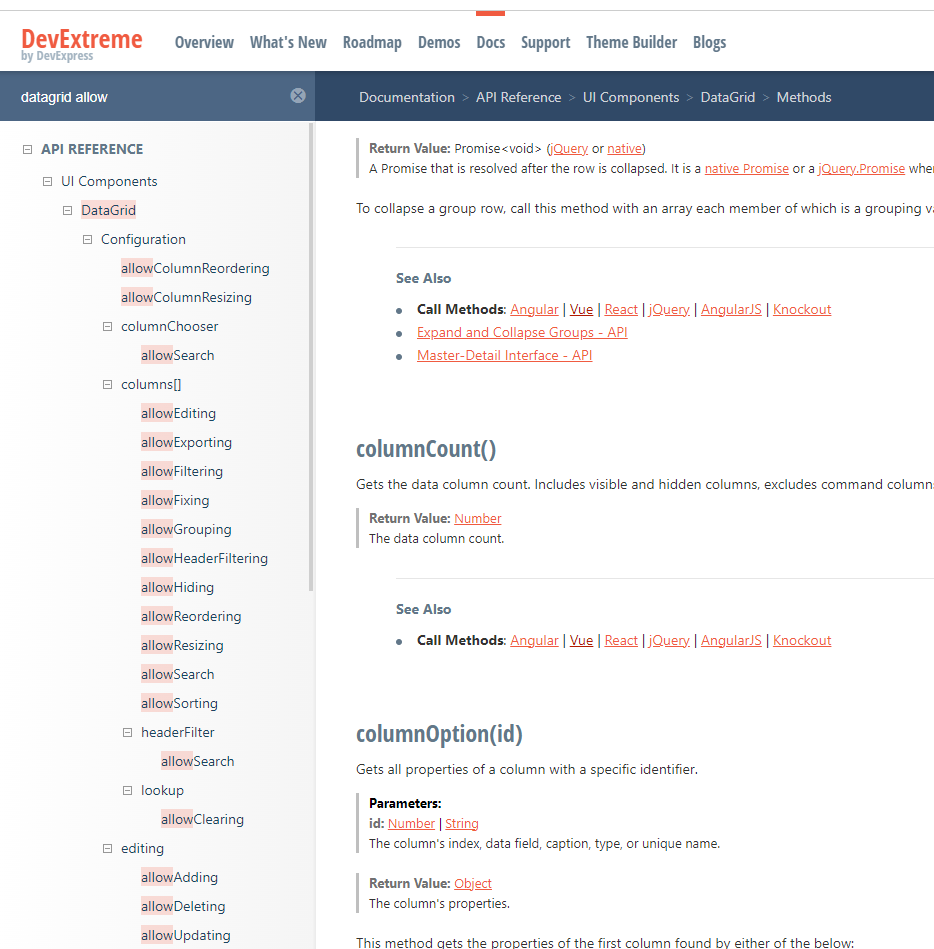
grid checkbox
https://js.devexpress.com/Demos/WidgetsGallery/Demo/DataGrid/MultipleRecordSelectionModes/Vue/Light/https://js.devexpress.com/Documentation/ApiReference/UI_Components/dxDataGrid/Configuration/selection/https://js.devexpress.com/Documentation/ApiReference/UI_Components/dxDataGrid/Configuration/selection/#modehttps://codesandbox.io/s/rj5zzy
<dx-data-grid ref="grid" :data-source="gridData" width="100%" height="100%"
    :selection="{ mode: 'multiple', showCheckBoxesMode: 'onClick' }"
    @selection-changed="onListSelectionChanged"

    >
    <dx-column alignment="center" width="100%" data-field="postId" caption="번호" />
    <dx-column alignment="center" width="100%" data-field="regUsrId" caption="작성ID" />
    <dx-column alignment="center" width="100%" data-field="regDttm" caption="작성일" :calculate-cell-value="data => formatters.datetime(data.regDttm)" />
    <dx-column alignment="center" width="100%" data-field="updUsrId" caption="수정ID" />
    <dx-column alignment="center" width="100%" data-field="updDttm" caption="수정일" :calculate-cell-value="data => formatters.datetime(data.regDttm)" />
</dx-data-grid>
onListSelectionChanged(e) { alert('temp') if (e.selectedRowsData && e.selectedRowsData.length > 0) { // this.disableRemoveButton = false } else { // this.disableRemoveButton = true } }
devextreme grid cell change
https://js.devexpress.com/Demos/WidgetsGallery/Demo/DataGrid/ColumnCustomization/Vue/Light/
grid cell edit
https://js.devexpress.com/Demos/WidgetsGallery/Demo/DataGrid/BatchEditing/Vue/Light/
js
<template>
  <dx-data-grid
    ref="grid"
    :data-source="gridData" width="100%" height="600"
    :selected-row-keys="selectedItemKeys"
    :show-borders="true"
    @selection-changed="selectionChanged"
    >
    <dx-column width="80" alignment="center" caption="선택" cell-template="cellTemplate01" />
    <dx-column alignment="center" width="100%" data-field="postId" caption="번호" />
    <dx-column alignment="center" width="100%" data-field="regUsrId" caption="작성ID" >
      <DxLookup :data-source="names" value-expr="code" display-expr="name" />
    </dx-column>
    <dx-column alignment="center" width="100%" data-field="regDttm" caption="작성일" data-type="date" />
    <dx-column alignment="center" width="100%" data-field="updUsrId" caption="수정ID" />
    <dx-column alignment="center" width="100%" data-field="updDttm" caption="수정일" data-type="date" />
    <dx-selection mode="multiple" show-check-boxes-mode="always" select-all-mode="page" />
      <DxEditing
        :allow-updating="true"
        :allow-adding="true"
        :select-text-on-edit-start="true"
        start-edit-action="click"
        mode="form"
      />
  <dx-toolbar>
    <dx-item location="after" template="btnWrap" />
  </dx-toolbar>
    <template #cellTemplate01>
      <dx-check-box :value="false" />
      <!-- <dx-selection mode="multiple" show-check-boxes-mode="always" select-all-mode="page" /> -->
    </template>

              <template #btnWrap>
                <div>
                  <dx-button class="btn--input" :height="34" text="add" icon="exportxlsx" @click="add" />
                  <dx-button class="btn--input" :height="34" text="remove" icon="exportxlsx" @click="del" />
                  <dx-button class="btn--input" :height="34" text="저장" @click="save" />
                </div>
              </template>
  </dx-data-grid>
</template>

<script lang="ts">
import { Component, Ref, Prop, Emit, Watch, Model } from 'vue-property-decorator'
import { DxToolbar, DxItem, DxSelection, DxSorting, DxEditing, DxDataGrid, DxFilterRow, DxColumn, DxPaging, DxLookup } from 'devextreme-vue/data-grid'
import { DxButton as DxTextBoxButton } from 'devextreme-vue/text-box'
import { DxScrollView } from 'devextreme-vue/scroll-view'
import DxButtonGroup from 'devextreme-vue/button-group'
import DataSource from 'devextreme/data/data_source'
import CustomStore from 'devextreme/data/custom_store'
import DxSelectBox from 'devextreme-vue/select-box'


@Component({
  components: {
    DxScrollView,
    DxToolbar,
    DxItem,
    DxTextBoxButton,
    DxButtonGroup,
    DxSelection,
    DxSorting,
    DxEditing,
    DxDataGrid,
    DxColumn,
    DxPaging,
    DxLookup,
    DxSelectBox,
  },
})
export default class {
  @Ref() readonly grid: DxDataGrid
  names: any[] = [{ code: 'admin', name: 'admin' }, { code: 'adminb', name: 'adminb' }, { code: 'adminc', name: 'adminc' }]
  gridData: SampleGrid[] = []
  selectTextOnEditStart: true
  startEditAction: 'click'
  selectedItemKeys: [] = []


  selectionChanged(data) {
    this.selectedItemKeys = data.selectedRowKeys;
    console.log('selectionChanged')
  }
grid summary
summary type - "sum","min","max","avg","count","custom" https://js.devexpress.com/Demos/WidgetsGallery/Demo/DataGrid/RecalculateWhileEditing/jQuery/Light/https://js.devexpress.com/Documentation/ApiReference/UI_Components/dxDataGrid/Configuration/summary/totalItems/#summaryType
js
$(() => {
  $('#gridContainer').dxDataGrid({
    summary: {
      recalculateWhileEditing: true,
      totalItems: [
        {
          column: 'OrderNumber',
          summaryType: 'count',
        },
        {
          column: 'SaleAmount',
          summaryType: 'avg',
          valueFormat: 'currency',
        },
      ],
    },
  })
})
button
js
<template>
  <dx-button type="success" class="btn--etc--ct06" icon="search" :height="34" text="상품검색" @click="showProductPopup = true" id="product-sch-btn" />
</template>
<style scoped>
#product-sch-btn {
  color: white;
  background-color: #004b29;
}

#product-sch-btn.dx-state-hover {
  background-color: #004b29;
  color: white;
}

#product-sch-btn.dx-state-active {
  background-color: #004b29;
  color: white;
}
</style>
vue-lecture.md
1. 강의 오리엔테이션
제작할 애플리케이션 소개
현대 프런트엔드 개발 절차와 역할
요구사항 > 서비스 기획 > UI, UX 상세 설계 > GUI 디자인 > 퍼블리싱 > 백엔드 API 개발 > 프런트엔드 개발 > QA수업에서 사용할 API 문서 소개
2. 개발환경 구성
개발 환경 소개
VSCode 플러그인 및 테마 설정
ctrl + shift + p > Color Theme > Night owl
ctrl + shift + p > File Icon Theme > material icon theme

night owl
material icon theme
vetur
vue vscode snippets
API 서버 프로젝트 구성
https://github.com/joshua1988/vue-til-serverNode.js 버전 관리가 필요한 이유와 버전 변경하는 방법
Node.js 이전 릴리즈 다운로드 페이지
https://nodejs.org/ko/download/releases/
OS 별로 아래 파일을 다운로드 받으시면 됩니다 :)
윈도우 64비트 : x64-msi 파일
윈도우 32비트 : x86-msi 파일
맥 : pkg 파일
리눅스 : tar 파일
NVM 설치 진행 명령어
https://gist.github.com/falsy/8aa42ae311a9adb50e2ca7d8702c9af1
NVM(Node Version Manager) 소개 및 설치
NVM으로 Node.js 버전 변경 및 설치
NVM 설치 및 버전 변경 절차 문서
-https://github.com/joshua1988/vue-til-server#nvm-%EC%84%A4%EC%B9%98-%EB%B0%8F-%EB%B2%84%EC%A0%84-%EB%B3%80%EA%B2%BD-%EB%B0%A9%EB%B2%95

nvm use 버전 이름
nvm 노드 버전

1. 기존에 터미널에서 설치하셨던 nvm을 삭제합니다. 삭제 방법은 구글링하시면 많이 나오더라구요!
2. nvm 깃허브 레포지토리로 가셔서 사용하실 버전에 맞게 Windows 용 setup파일을 다운로드 하고 설치해줍니다.
3. VSCode를 재실행 하시고 터미널에서 nvm -v 로 버전을 확인하시면 설치하려던 버전의 nvm이 정상 설치되어 있는 것을 확인하실 수 있습니다.
4. nvm install 10.16.3 으로 설치시 너무 오래 걸려서 node.js 공식 사이트에서 이전 릴리즈 버전으로 10.16.3 버전을 다운로드 합니다.
5. node.js 공식 사이트에서 받은 10.16.3 파일을 압축 해제합니다. 하시고 폴더 명을 v10.16.3 이런식으로 변경해주세요!
6. nvm을 설치한 폴더로 갑니다.(기본 경로 : C:\Users\사용자 이름\AppData\Roaming\nvm)
이 폴더에 다운로드한 v10.16.3 이름으로 된 폴더를 복사해서 넣어주시면 됩니다.
API 서버 실행 및 확인
node -v
npm i
npm run dev

http://localhost:3000/api/docs/
데이터 베이스 연결 안내
MongoDB 클라우드 사이트 소개 및 가입 안내
https://www.mongodb.com/ko-kr/cloudMongoDB 클라우드 인스턴스 생성 및 설정
프로젝트생성
클러스터생성
MongoDB 연결 확인
mongodb+srv://1234:<password>@cluster0.2l3sv.mongodb.net/myFirstDatabase?retryWrites=true&w=majority
useUnifiedTopology: true,
API 문서 보는 법과 사용하는 방법
3. 프로젝트 생성 및 환경 구성
Vue CLI로 프로젝트 생성
https://cli.vuejs.org/guide/installation.html

*뷰 CLI 버전 4.5.x 이상 설치시 선택
Default ([Vue 2] babel, eslint)

프로젝트 설치 옵션
Manually select features
Babel, Linter, Unit
2.x <-- Vue 2로 하시는게 중요합니다. 아직 Vue 3는 상용 서비스에 적용하기에는 무리가 있습니다.
Prettier
Lint on Save
Jest
In dedicated config files
n


npm install -g @vue/cli
vue --version
vue create vue-til

Manually select features
- Babel, Linter / Formatter, Unit Testing
- ESLint + Prettier
- Lint on save
- Jest
- In dedicated config files

Please pick a preset: Manually select features
Check the features needed for your project: Babel, Linter, Unit
Choose a version of Vue.js that you want to start the project with 2.x
Pick a linter / formatter config: Prettier
Pick additional lint features: Lint on save
Pick a unit testing solution: Jest
Where do you prefer placing config for Babel, ESLint, etc.? In dedicated config files

npm run serve
Vue 프로젝트 구조 설명 및 ESLint 에러 확인
.browserslistrc
.eslintrc.js
babel.config.js

https://github.com/vuejs/vue-devtools
https://devtools.vuejs.org/
ESLint 에러가 화면에 표시되지 않게 하는 방법
https://joshua1988.github.io/webpack-guide/devtools/webpack-dev-server.htmlESLint 설정 파일 안내
Prettier 소개 및 ESLint와 같이 사용해야 하는 이유
ESLint에 Prettier 규칙 적용
https://joshua1988.github.io/web-development/vuejs/boost-productivity/ESLint 플러그인 설치 및 설정 변경
https://github.com/joshua1988/vue-til/blob/complete/settings.json

Open Settings(settings.json)에 아래 내용 추가
{
  "editor.codeActionsOnSave": {
    "source.fixAll.eslint": true
  },
  "eslint.workingDirectories": [
    {"mode": "auto"}
  ],
}
Prettier 플러그인 확인 및 설정할 때 주의 사항
프로젝트 레벨로 ESLint 규칙을 관리해야 하는 이유와 ESLint 규칙 설명
파일의 절대 경로를 설정해야 하는 이유
파일을 절대 경로로 찾기 설정
https://github.com/joshua1988/vue-til/blob/complete/jsconfig.json
https://code.visualstudio.com/docs/languages/jsconfig
애플리케이션 코딩 컨벤션 및 뷰 스타일 가이드 소개
https://kr.vuejs.org/v2/style-guide/index.html4. 라우터 & 컴포넌트 설계
깃헙 리포지토리 안내 및 클론
https://github.com/joshua1988/vue-til뷰 라우터 설치 및 연결
22년 2월 7일부터 뷰 라우터를 NPM으로 설치할 때 버전을 꼭 명시해 주셔야 강의에서 다루는 Vue 2 버전과 호환됩니다.
npm i vue-router@3.5.3

https://joshua1988.github.io/web-development/vuejs/vue3-as-default/
페이지 컴포넌트 생성 및 연결
라우팅 동작 확인
코드 스플리팅 소개 및 적용
https://developer.mozilla.org/en-US/docs/Web/API/Window/history

https://webpack.js.org/guides/code-splitting/

https://vuejs.org/guide/built-ins/keep-alive.html
초기 진입 페이지 설정
https://github.com/vuejs/vue-router없는 페이지를 접근할 때의 라우터 처리
history mode 설정 및 싱글 페이지 애플리케이션 배포할 때 주의 사항
https://router.vuejs.org/guide/essentials/history-mode.html5. 회원 가입 페이지 개발
회원 가입 페이지 개발을 위한 준비
헤더 컴포넌트 마크업 및 회원 가입 컴포넌트 생성
회원 가입 폼 마크업
회원 가입 폼 데이터 바인딩 및 이벤트 연결
회원 가입 API 요청을 위한 문서 확인
API 폴더와 회원 가입 API 함수 생성
회원 가입 API 호출과 주의 사항
회원 가입 이후의 동작 구현
6. 실무 환경을 위한 프로젝트 설정
API 설정 공통화
env 파일과 설정 방법
Vue CLI의 env 파일 규칙과 실무 환경 구성 방법
7. 로그인 페이지 개발
로그인 폼 컴포넌트 생성 및 마크업
로그인 폼 데이터 바인딩과 이벤트 연결
로그인 API 문서 확인 및 API 함수 생성
로그인 기능 구현
에러가 났을 때의 대처 방법과 로그 분석하는 방법
네트워크 에러 확인 방법과 에러 처리 코드 구현
에러 메시지 출력 및 에러 피드백 표시 방법
사용자 폼 유효성 검사 안내
computed 속성을 이용한 이메일 형식 검사
[퀴즈] 회원 가입 컴포넌트 유효성 검사
8. 로그인 상태 관리와 스토어
메인 페이지 개발을 위한 브랜치 안내 및 코드 정리
로그인 동작 확인 및 구현 방향 복습
메인 페이지 라우팅 구현 및 확인
자바스크립트로 페이지 이동하기 구현 및 설명
로그인 이후의 동작 설명
컴포넌트 간 데이터 전달 방법 3가지와 구현 방향
뷰엑스 설치 및 연결
로그인 아이디 헤더에 표시하기
로그인 했을 때의 헤더 버튼 분기 처리
로그 아웃 기능 구현
9. 토큰을 이용한 API 인증 처리
브랜치 전환 및 변경 사항 안내
학습 노트 조회 API를 호출하는 방법과 확인 사항
로그인 토큰 값 확인
HTTP 헤더에 토큰 값을 실는 방법
스토어를 이용한 토큰 저장 및 활용
저장된 토큰 값을 이용한 API 요청 및 의도치 않은 동작 확인
문제가 되는 동작 분석 및 해결 방향 안내
액시오스 인터셉터 소개
액시오스 인터셉터 모듈화 및 인스턴스에 연결하는 방법
인터셉터를 이용한 HTTP 헤더 설정
10. 학습 노트 데이터 조회
학습 노트 조회 API 함수 구현
학습 노트 목록 표시를 위한 데이터 바인딩
학습 노트 생성 및 생성된 데이터 확인
학습 노트 목록 마크업 및 스타일링
학습 노트 목록 아이템 컴포넌트화
데이터 로딩 상태 표시
로딩 상태를 표시하는 스피너 등록
11. 브라우저 저장소를 이용한 인증 값 관리
브랜치 전환 안내
화면 새로 고침 했을 때의 문제점 분석
로그인 인증 값 브라우저 저장소에 저장 후 확인
브라우저 저장소로 인증 값 보존
actions 속성을 이용한 로그인 기능 구현과 비동기 처리시 유의할 점
학습 노트 데이터 생성
학습 노트 등록 페이지 라우터 생성 및 확인
학습 노트 등록 폼 마크업 및 스타일링
학습 노트 등록 폼의 데이터 바인딩 및 이벤트 연결
학습 노트 등록 API 구현 및 동작 확인
학습 노트 등록 에러 처리
학습 노트 본문 길이 유효성 검사 기능 구현
12. 중간 정리
중간 리뷰
이후 강의 내용 요약
13. API 함수 모듈화
API 모듈화를 위한 현재 구조 분석
인스턴스 생성 함수 분할
[실습 안내] 계정 관련 API 분할 및 실습 안내
[실습 답안] API 함수 모듈화 정리
14. 학습 노트 데이터 삭제
삭제 기능 마크업 및 이벤트 연결
삭제 API 함수 및 기능 구현
삭제 기능 UX 개선
학습 노트 생성 기능 관련 UX 수정
15. 학습 노트 데이터 수정
학습 노트 수정 아이콘 이벤트 연결 및 구현 방향 안내
학습 노트 수정 페이지 생성 및 라우터 연결
학습 노트 수정 페이지 마크업 및 라우터 파라미터 연결
학습 노트 수정을 위한 특정 게시물 조회 기능 구현
학습 노트 수정 API 및 기능 구현
16. 데이터 포맷팅
뷰 필터 소개 및 적용
전역 필터 소개 및 설정
17. 라우터 심화
라우터 네비게이션 가드 소개
라우터 네비게이션 가드 기초 코드
페이지별 인증 권한 설정
인증되지 않은 사용자 접근 제어
로그인 상태에 따른 로고 이동 링크 처리
로그 아웃 관련 코드 수정
18. 프런트엔드 테스팅 소개
테스팅 환경 구성
테스트 코드가 필요한 이유
Jest 소개
자바스크립트 테스트 파일 소개 및 파일 경로 관련 안내
자바스크립트 테스트 코드 시작하기
테스트 코드 작성 팁
뷰 컴포넌트 테스트 방법
뷰 테스트 유틸 라이브러리 소개 및 적용
find()를 이용한 컴포넌트 HTML 요소 검색
로그인 폼의 인풋 박스 관련 테스트 코드 작성
이메일 유효성 검사 기능 동작 테스트 코드로 확인
로그인 컴포넌트 첫 번째 테스트 코드 작성
로그인 컴포넌트 두 번째 테스트 코드 작성
[실습 안내] 회원가입 컴포넌트 테스트 코드 작성
19. 강의 마무리
학습 내용 정리 및 향후 학습 로드맵 안내
vue-typescirpt.md
Vue TypeScript 설정
bash
npm install -g @vue/cli
yarn global add @vue/cli

vue --version

vue create vue-started- TS, Router, Vuex, Linter
- class-style > Yes
- Bable alongside TypeScript for auto-detected polyfills > No
- history mode for router > Yes
vue.md
요구사항 > 서비스 기획 > UI, UX 상세 설계 > GUI 디자인 > 퍼블리싱 > 백엔드 API 개발 > 프런트엔드 개발 > QA
night owl material icon theme vetur vue vscode snippets
https://github.com/joshua1988/vue-til-server
버전 Node.js 이전 릴리즈 다운로드 페이지 https://nodejs.org/ko/download/releases/ OS 별로 아래 파일을 다운로드 받으시면 됩니다 😃 윈도우 64비트 : x64-msi 파일 윈도우 32비트 : x86-msi 파일 맥 : pkg 파일 리눅스 : tar 파일 NVM 설치 진행 명령어 https://gist.github.com/falsy/8aa42ae311a9adb50e2ca7d8702c9af1
https://github.com/nvm-sh/nvm#installing-and-updating
*vscode terminal.integrated.shell.window
bash로 변경 사용자에 폴더에서 .bash_profile 파일추가
curl -o- https://raw.githubusercontent.com/creationix/nvm/v0.33.1/install.sh | bash
nvm -v nvm use system vi ~/.bash_profile
export NVM_DIR="$([ -z "${XDG_CONFIG_HOME-}" ] && printf %s "${HOME}/.nvm" || printf %s "${XDG_CONFIG_HOME}/nvm")" [ -s "$NVM_DIR/nvm.sh" ] && . "$NVM_DIR/nvm.sh" # This loads nvm
source ~/.bash_profile
nvm install 12.14.0 nvm install 10.16.3
vue click async
https://stackoverflow.com/questions/64883186/basic-async-call-on-click-event-in-template-vuejs
vue computed
https://velog.io/@jinsu6688/vuejs-computed
vue dx-grid row
vue smart editor2 image upload
https://javafactory.tistory.com/1259http://naver.github.io/smarteditor2/user_guide/2_install/download.htmlhttps://zero-gravity.tistory.com/171https://github.com/naver/smarteditor2/releases/tag/v2.8.2.3http://webprogramer.kr/blog/P000000364/post.dohttp://www.todayhumor.co.kr/board/view.php?table=programmer&no=11347https://holybell87.tistory.com/12
js
* 사용버전 : 2.8.2.12056
1. /SE2.8.2.O12056/sample/js/plugin/hp_SE2M_AttachQuickPhoto.js
var sPopupUrl = "이미지 업로드 팝업창 표시URL"; 로 수정

2. 이미지 업로드 팝업창을 통해, 업로드 한 후
   Smart Editor에 이미지 업로드 결과를 반영하기 위해 만든 function을 호출하는 부분에서
window.opener.parent.function이름(); 요론식으로 호출해야 한다.


Smart Editor가 iFrame으로 생성되니...

이미지 업로드 기능을 만들어 놓지 않았다면
요기로 가면, JSP로 만들어 놓은 분이 계시다.

http://zero-gravity.tistory.com/171
https://lilymate.tistory.com/476
vue grid edit
https://js.devexpress.com/Documentation/Guide/UI_Components/DataGrid/Editing/#User_Interaction/Row_Modehttps://js.devexpress.com/Demos/WidgetsGallery/Demo/DataGrid/RowEditingAndEditingEvents/Vue/Light/
vue grid addrow
https://js.devexpress.com/Demos/WidgetsGallery/Demo/FloatingActionButton/Overview/Vue/Light/
js
<dx-button class="btn--input" width="68" height="34" text="추가" @click="addNewRow" />
<dx-button class="btn--input" width="68" height="34" text="완료" @click="saveGridInstance" />

  saveGridInstance() {
    console.log('aaaa')
    // debugger
    // this.grid.instance.beginUpdate()
    // this.grid.instance.closeEditCell()
    this.grid.instance.saveEditData()
    // this.grid.instance.refresh()
    console.log('bbb')
  }
devextreme customstore remove
https://js.devexpress.com/Documentation/ApiReference/Data_Layer/CustomStore/
devextreme popup
js
    <h3 class="hy-h3 required">팝업</h3>
    <div class="row-box mgt-20">
      <dx-button class="btn--input" height="34" text="팝업오픈" @click="popupOpen()" />
    </div>
    <!-- 팝업시작 -->
    <dx-popup :visible.sync="show" width="600" title="팝업가이드">
      <div class="sub-head">
        서브 헤더 영역
      </div>
      <!-- 스크롤이 필요 없을 경우 삭제 -->
      <DxScrollView class="scrollview" ref="scrollViewWidget">
        <!-- popup -->
        <div class="hy-popup">
          팝업 콘텐츠 영역...

          <div class="btn-wrap center">
            <!-- 좌우 정렬 span.left 사용 -->
            <!-- <span class="left">
                              <dx-button class="btn--base" width="120" height="40" text="취소" />
                            </span> -->
            <dx-button class="btn--base" width="120" height="40" text="취소" @click="popupClose" />
            <dx-button class="btn--solid" width="120" height="40" text="승인요청" />
          </div>
        </div>
      </DxScrollView>
    </dx-popup>
    <!-- 팝업 종료 -->
  show: boolean = false

  popupOpen() {
    console.log('open')
    this.show = true
  }

  popupClose() {
    console.log('close')
    this.show = false
  }
devextreme textbox showclearbutton
js
<dx-text-box v-model="searchCondition.id" :show-clear-button="true" />vue style 적용
js
<div v-show="!!text4" :style="{ display: !!text4? 'inline-block' :'none' }"> </div>devextreme excel upload
js
  <u-file-upload-box
    v-model="result2"
    file-grp-id="file4"
    select-button-text="엑셀파일 업로드"
    upload-type="convert"
    converted-file-type="excel"
    model-class-name="com.test.FileExcelSampleModel"
    :stop-on-error="true"
    :saveable="false"
    :editable="true"
  />
devextreme image upload
js
https://codesandbox.io/s/jgpcd2?file=/App.vue
https://codesandbox.io/s/jgpcd2?file=/App.vue:334-345
vue import alias
js
import { DxToolbar, DxItem, DxSelection, DxEditing, DxDataGrid } from 'devextreme-vue/data-grid'
import { DxToolbar as DxToolbar2, DxItem as DxItem2, DxSelection as DxSelection2, DxEditing as DxEditing2, DxDataGrid as DxDataGrid2 } from 'devextreme-vue/data-grid'
vue error
https://nodejs.org/download/release/v16.17.1/


internal/modules/cjs/loader.js:818
  throw err;
  ^
Error: Cannot find module 'node:fs'


node_modules/rc9/dist/index.cjs
rc9/dist/index.cjs

https://cocoon1787.tistory.com/851
https://cocoon1787.tistory.com/851
https://medium.com/@su_bak/cannot-find-module-fs-promises-%E1%84%8B%E1%85%A6%E1%84%85%E1%85%A5-%E1%84%92%E1%85%A2%E1%84%80%E1%85%A7%E1%86%AF-%E1%84%87%E1%85%A1%E1%86%BC%E1%84%87%E1%85%A5%E1%86%B8-a344921bd430
vue prop
prop설정후에는 f5 진행후 하기
// @Prop({ default: '' }) fileId: string @Prop() fileId: string = '' (x) Avoid mutating a prop directly since the value will be overwritten whenever the parent component re-renders. Instead, use a data or computed property based on the prop's value. Prop being mutated: "fileId"
devextreme grid link
vue grid focused-row-changing
js
      <dx-data-grid ref="grid" :data-source="gridData" width="100%" height="100%" @focused-row-changing="onFocusedRowChanging" @focused-row-enabled="true" key-expr="regDttm">
        <dx-column alignment="center" width="100%" data-field="rownum" caption="번호" />
        <dx-column alignment="center" width="100%" data-field="regUsrId" caption="작성ID" />
        <dx-column alignment="center" width="100%" data-field="regDttm" caption="작성일" :calculate-cell-value="data => formatters.datetime(data.regDttm)" />
        <dx-column alignment="center" width="100%" data-field="updUsrId" caption="수정ID" />
        <dx-column alignment="center" width="100%" data-field="updDttm" caption="수정일" :calculate-cell-value="data => formatters.datetime(data.regDttm)" />
      </dx-data-grid>

// onSelectionChanged({ selectedRowsData }) {
  //   debugger
  //   const data = selectedRowsData[0]
  //   alert('ss')
  // }

  clickTimer: any
  lastRowCLickedId: any
  onFocusedRowChanging(e) {
    //OBTAIN YOUR GRID DATA HERE
    console.log('test')
    if (this.clickTimer && this.lastRowCLickedId === e.rowIndex) {
      console.log('aaaa')
      clearTimeout(this.clickTimer)
      this.clickTimer = null
      this.lastRowCLickedId = e.rowIndex

      const key = e.event && e.event.key
      if (e.event.detail === 2) {
        // alert('test')
      }
      //YOUR DOUBLE CLICK EVENT HERE
      // if (typeof dblClickFunc == 'function') {
      // }
    } else {
      this.clickTimer = setTimeout(function () {}, 250)
    }
    this.lastRowCLickedId = e.rowIndex
  }

  // const pageSize = e.component.pageSize()
  // const pageIndex = e.component.pageIndex()
  // const isLoading = e.component.getController('data').isLoading()
  // const key = e.event && e.event.key
  // if (!isLoading) {
  //   if (key && e.prevRowIndex === e.newRowIndex) {
  //     if (e.newRowIndex === pageSize - 1) {
  //       e.component.pageIndex(pageIndex + 1).done(() => {
  //         e.component.option('focusedRowIndex', 0)
  //       })
  //     } else if (e.newRowIndex === 0) {
  //       e.component.pageIndex(pageIndex - 1).done(() => {
  //         e.component.option('focusedRowIndex', pageSize - 1)
  //       })
  //     }
  //   }
  // }
  // }
방법1 node 재설치
- node 12버전 삭제
- 재설치 https://nodejs.org/download/release/v16.17.1/
방법2 nvm 사용시
- nvm install 16.17.1
- nvm use 16.17.1
- nvm alias default 16.17.1
vue grid
js
    this.gridDataSource = new DataSource({
      store: new CustomStore({
        load: async loadOptions => {
          const paginationRequest = createPagingParameter(loadOptions)
          const result = await orderConsignmentListService.getOrderConsignmentList(paginationRequest.header, this.params)
          this.gridData = result.body
          this.totalCount = result.header.totalRecords
          return {
            data: this.gridData,
            totalCount: result.header.totalRecords,
          }
        },
      }),
    })


    this.gridDataSource = new DataSource({
      store: this.gridData
    });
databindiing
https://js.devexpress.com/Documentation/Guide/UI_Components/PivotGrid/Data_Binding/
CustomStore
vue grid paging
https://js.devexpress.com/Demos/WidgetsGallery/Demo/DataGrid/RecordPaging/Vue/Light/
js
<dx-scrolling
  mode="standard"
  column-rendering-mode="virtual"
  :use-native="false"
  />
<dx-paging
  :enabled="true"
  :page-size="10"
  :page-index="0" />
<dx-pager
  :show-page-size-selector="true"
  :show-info="true"
  info-text="현재 페이지 {0}. 전체항목: {2}개" />
js
<DxScrolling row-rendering-mode="virtual"/>
<DxPaging :page-size="10"/>
<DxPager
  :visible="true"
  :allowed-page-sizes="pageSizes"
  :display-mode="displayMode"
  :show-page-size-selector="showPageSizeSelector"
  :show-info="showInfo"
  :show-navigation-buttons="showNavButtons"
/>
js
  displayMode:string =  'full'
  pageSizes: any[] = [5, 10, 'all']
  showPageSizeSelector: boolean =true
  showInfo: boolean=true
  showNavButtons: boolean=  true
vue style
style="visibility: hidden" style="display: none"
vue dx-list
js
<div class="col">
  <strong>대분류</strong>
  <dx-list
    v-model="fstCtgValue"
    :data-source="fstCtgIds"
    display-expr="codeNm"
    :height="175"
    selection-mode="single"
    page-load-mode="scrollBottom"
    :search-enabled="true"
    search-mode="contains"
    search-expr="codeNm"
    @selection-changed=selectionChangedFirst($event)
    />
</div>
<div class="col">
  <strong>중분류</strong>
  <dx-list
    v-model="scdCtgValue"
    :data-source="scdCtgIds"
    :height="175"
    selection-mode="single"
    page-load-mode="scrollBottom"
    :search-enabled="true"
    search-mode="contains"
    search-expr="codeNm"
    @selection-changed=selectionChangedSecond($event)
    >
    <template #item="{ data: data, index: index }">
      {{ data.codeNm}}
    </template>
  </dx-list>

</div>


<dx-list
  v-model="scdCtgValue"
  :data-source="scdCtgIds"
  :height="175"
  selection-mode="single"
  @selection-changed=selectionChangedSecond($event)
>
  <template #item="{ data: row, index: index }">
    <!-- <ul class="temp" style='display: none'> -->
    <ul class="temp" v-if='index== 2'>
      <li>
          {{ index }}
          {{ row.code}}
      </li>
    </ul>
  </template>
</dx-list>
vue dom 사용
https://bono915.tistory.com/entry/VueJS-refs으로-Dom에-접근하는-방법
vue for
js
    <template v-for="(item, index) in fileInfo" >
      <template>
        <dd class="hy-attch" v-bind:key="item.fileName" >
            <a href= "javascript:;" @click="()=>{download(item.fileGrpId, item.fileId, item.fileNo, '', 1)}">{{ item.orgName }}</a>
        </dd>
      </template>
    </template>
File chooser dialog can only be shown with a user activation.
js
vue emit and model
js
// parent -emit 방식
<editor-product-regist @value="changeDatass"/>
  changeDatass(data: string) {
    console.log('my!!!', data)
  }

// parent - 모델방식
<editor-product-regist v-model="changeData"/>

  changeData: string = ''

  @Watch('changeData')
  changeData() {
    console.log(this.changeData)
  }

// child

  @Model('value', { default: null }) readonly value

  @Watch('content', { immediate: true })
  changeContent() {
    this.$emit('value', this.content)
  }
vue paging
js
<dx-scrolling
  mode="standard"
  column-rendering-mode="virtual"
  :use-native="false"
  />
<dx-paging
  :enabled="true"
  :page-size="10"
  :page-index="0" />
<dx-pager
  :visible="true"
  :show-page-size-selector="true"
  :show-info="true"
  info-text="현재 페이지 {0}. 전체항목: {2}개"
  />

  @Ref() readonly grid: DxDataGrid
  gridData: OrderConsignmentList[] = []
  loadParam: any

  async loadData() {
    this.loadParam = {
      "currentPage": 1,
      "pageSize": 10,
      "orders": []
    }
    const paginationRequest = createPagingParameter(this.loadParam)
    const result = await testService.getSelect(paginationRequest.header, this.params)
    this.gridData = result.body
    this.totalCount = result.header.totalRecords
  }

  async search(params) {
    this.params = params
    this.loadData()
  }
vue promise
js
.catch(error => alert(error.message));

.then(response => response.json())
vue devextreme grid insert
js
this.gridDataSource = this.grid.instance.getDataSource()
this.gridDataSource.store().push([{ type: 'insert', data: newDeliveryFee }])
vue devextreme grid checkbox
js
:selection="{ mode: 'multiple', showCheckBoxesMode: 'onClick' }"
      @selection-changed="onListSelectionChanged"

onListSelectionChanged(e) {
    alert('temp')
    if (e.selectedRowsData && e.selectedRowsData.length > 0) {
      // this.disableRemoveButton = false
    } else {
      // this.disableRemoveButton = true
    }
  }
vue devextreme theme
js
https://js.devexpress.com/Documentation/Guide/Themes_and_Styles/Icons/
https://js.devexpress.com/Demos/WidgetsGallery/Demo/Button/Icons/Vue/Light/
vue se2
js
https://junesker.tistory.com/16
https://m.blog.naver.com/hiizero/221639344451
http://naver.github.io/smarteditor2/user_guide/4_photouploader/intro.html
http://naver.github.io/smarteditor2/user_guide/
vue devextreme data-period-box
js
<dx-date-period-box v-model="dateInput5" :width="150" mode="datetime" />vue window postmessgae
http://guide.ustraframework.kro.kr/ref-doc/03/5wtYKOTfWycqrQuucpyn
vue grid option
js
<dx-data-grid
  :data-source="gridDataSource"
  :show-borders="true"
  :allowColumnReordering="true"       // <===== 그리드 컬럼 위치 변경 가능 여부
  :allowColumnResizing="true"
  :row-alternation-enabled="false"
  :show-row-lines="true"
  :column-min-width="80"
>
:allowColumnReordering="true"       // <===== 그리드 컬럼 위치 변경 가능 여부
:allowColumnResizing="true"         // <===== 그리그 컬럼 사이즈 변경 가능 여부
<dx-selection mode="single" /> // <==== multiple 체크박스, single 선택한 라인 보이기, none 아무것도 없음
<pager.infoText>
{0} - 현재 선택한 페이지 (shows the current page number.)
{1} - 전체 페이지 (shows the total page count.)
{2} - 전체 행 개수 (shows the total row count.)
vue devextreme grid template
js
<dx-data-grid ref="grid" :data-source="gridData" width="100%" height="100%">
   <dx-column alignment="center" width="100%" data-field="postId" caption="번호" />
   <dx-column :width="100" :allow-sorting="false" data-field="Picture" cell-template="cellTemplate"/>
   <template #cellTemplate>
      <img src="http://localhost/image.png">
   </template>
</dx-data-grid>
https://codesandbox.io/s/ixjl38?file=/App.vue
https://supportcenter.devexpress.com/ticket/details/t657515/how-to-show-an-image-in-datagrid-column
https://js.devexpress.com/Documentation/Guide/UI_Components/DataGrid/Columns/Customize_Cells/#Customize_the_Appearance
https://js.devexpress.com/Demos/WidgetsGallery/Demo/DataGrid/ColumnTemplate/Knockout/Light/
vue addEvent
https://stackoverflow.com/questions/55067565/vue-js-add-event-listener-inside-instancevue devextreme exprot xlsx, pdf
https://shiftkey.tistory.com/28
https://js.devexpress.com/Documentation/ApiReference/UI_Components/dxDataGrid/Configuration/export/
https://js.devexpress.com/Demos/WidgetsGallery/Demo/DataGrid/ExcelJSOverview/Vue/Light/
vue devextreme grid cell change
js
  <dx-data-grid id="sampleGrid" ref="grid" :data-source="gridData" width="100%" height="600"
    :selected-row-keys="selectedItemKeys" :show-borders="true" @editorPreparing="onEditorPreparing"
    @editingStart="onEditingStart($event)">

  onEditingStart(e) {
    // e.column.allowEditing = true
    // console.dir(e.column.name)
    // // debugger
    // console.dir(e.key.postId == 43)
    // if (e.column.name == "isChecked") {
    //   if (e.key.isChecked == true) {
    //     e.cancel = true;

    //     console.log('testa')
    //   }
    // }

    // }
    // console.dir()
    // if (info.key == 2) {
    // info.cancel = true;
    // }
  }

  onEditorPreparing(e) {
    // console.dir(e.row.isSelected)
    // console.log('onEditorPreparing')
    if (e.parentType === 'dataRow' && e.dataField === 'isChecked' && e.row.isSelected == true) {
      console.log('test')

      e.row.isSelected = true
      // e.editorOptions.disabled = true
    }
  }
vue model add
js
import { ProofFile } from '@/models/data-model'

getUploadList() {
  var fileIdList = [{ etpsCd: 'a100', fileId: 'aaaaa', fileTpCd: 'F100' }, { etpsCd: 'b100', fileId: 'bbbbb', fileTpCd: 'F200' }]
  var updateList = []
  fileIdList.map(row => {
    let proofFile: ProofFile = {
      fileId: row.fileId,
      etpsCd: row.etpsCd,
      fileTpCd: row.fileTpCd,
      fileNo: 1,
    }
    updateList.push(proofFile)
  })
}
vue refs 사용
js
<file-upload-product-regist fileGrpId="default-file-group" ref = "refFileUpload" />
  getFileList() {
    const val = (this.$refs['refFileUpload'] as FileUpload).getUploadList()
    val.map(test => { console.dir(test) })
  }
vue typeof 와 instanceof의 차이, 타입 또는 클래스 구분하기
https://unikys.tistory.com/260
vue arr인지 확인
Array.isArray()

https://hianna.tistory.com/402
vue tap index
js
<dx-tab-panel :selected-index.sync="tabIndex2" :data-source="tab2" height="100%" :width:="500"
  @selection-changed="tab2IndexChanged">
  <template #title="{ data }">
    <span>{{ data.name }}</span>
  </template>
  <template #tab1>
    <!-- <sub-tab ref="grid1" /> -->
  </template>
  <template #tab2>
    <!-- <sub-tab ref="grid2" /> -->
  </template>
  <template #tab3>
    <!-- <sub-tab ref="grid3" /> -->
  </template>
</dx-tab-panel>

  tabIndex2 = 0

  tab2 = [
    { name: '결제건수', template: 'tab1', disabled: false },
    { name: '결제자수', template: 'tab2', disabled: false },
    { name: '결제금액', template: 'tab3', disabled: false },
  ]

  tab2IndexChanged() {
    if (this.tabIndex2 === 0) {
      // @ts-ignore
      // this.$refs.grid1.loadData()
    } else if (this.tabIndex2 === 1) {
      // @ts-ignore
      // this.$refs.grid2.loadData()
    } else if (this.tabIndex2 === 2) {
      // @ts-ignore
      // this.$refs.grid3.loadData()
    }
  }
vue config, querystring
js
@Component({
  config: {
    auth: {
      required: false
    }
  },
})

  created() {
    console.log('created')
    console.dir(this.$route.query)
  }
vue notion
js
https://www.npmjs.com/package/vue-notion?activeTab=readmevue querystring
js
  funcQueryString(data: any) {
    var keys = []
    for (var number in data) {
      if (data.hasOwnProperty(number)) keys.push(number)
    }
    var querysting = ''
    keys.map((row, index) => {
      if (index == 0) querysting += `?${row}=${data[row]}`
      else querysting += `&${row}=${data[row]}`
    })
    return querysting
  }
vue devextreme floating action button
js
    <DxSpeedDialAction :index="1" icon="" label="전체 탭 닫기" :on-click="() => success= true" />


import config from 'devextreme/core/config';
import FloatingActionButtonDirection from 'devextreme/core/config';
import repaintFloatingActionButton from 'devextreme/ui/speed_dial_action/repaint_floating_action_button';~~~~
import DxSpeedDialAction from 'devextreme-vue/speed-dial-action';

    config({
      floatingActionButtonConfig: {
        icon: 'rowfield',
        shading: true,
        direction: 'down',
        position: {
          of: '.dx-datagrid-rowsview',
          my: 'right top',
          at: 'right top',
          offset: '-20 90',
        },
      },
    });

    repaintFloatingActionButton();

https://js.devexpress.com/Demos/WidgetsGallery/Demo/FloatingActionButton/Overview/Vue/Light/
vue devextreme icon
js
<dx-button icon="deletetable" v-if="menu.text == 'Home'" @click="clickCloseAllTab()" />

https://js.devexpress.com/Documentation/Guide/Themes_and_Styles/Icons/
vue devextreme validator
js
https://js.devexpress.com/Documentation/ApiReference/UI_Components/dxValidator/Validation_Rules/PatternRule/
https://js.devexpress.com/Demos/WidgetsGallery/Demo/Validation/Overview/Vue/Light/
vue devextreme textbox mode 오류
js
// dx-text-box가 password를 누른 상태에서 다른 텍스트 박스를 누를경우 모드가 기존에 클릭한 mode로 되는 현상
<dx-text-box ref="refTextBox" class="side-search-input" v-model="searchText" mode="search"
        placeholder="입력" value-change-event="input" :readOnly="!isFocused" @focusIn="focusIn()"
        @focusOut="focusOut()" />

@Ref() refTextBox: DxTextBox
  focusIn() {
    this.isFocused = true
    this.refTextBox.mode = "text"
  }
  focusOut() {
    this.isFocused = false
    this.refTextBox.mode = "text"
  }
vue file upload download
js
https://stackoverflow.com/questions/41803925/download-octet-stream-via-jquery
https://kyounghwan01.github.io/blog/JS/JSbasic/Blob-url/
https://stackoverflow.com/questions/37510801/convert-octet-stream-to-image
nuxt gitlab [error] Couldn't find any versions for
js
원인: gitlab에서 nexus에 패키지의 특정 버전이 삭제되면서 발생한 오류

점검1: gitlab에서 빌드를 진행하는 cd /app/gitlab-runner/builds/aaa/0/aaa
=> .npmrc 확인, yarn install 가능한지 확인, yarn관련 파일 삭제후 진행 등

점검2: gitlab-ci.yml
=> 스크립트 확인

점검3: nexus 이동후 점검 Browser
=> 해당 패키지또는 라이브러리 확인

git-runner
.npmrc


Run yarn again.
Run yarn --force.
If it still does not help, you can wipe yarn.lock and run yarn again.
vue security
import VueSanitize from "vue-sanitize";
Vue.use(VueSanitize);

https://dev.grapecity.co.kr/bbs/board.php?bo_table=Insight&wr_id=118
vue cell color change
js
vm.statusData = [];
vm.statusData = [
    {
        "iStatus": 1,
        "sName": "No Work",
        "sDesc": "No Work Done",
        "dPercentComplete": 0,
        "sColor": "Red"
    },
    {
        "iStatus": 2,
        "sName": "WIP",
        "sDesc": "Work In Progress",
        "dPercentComplete": 50,
        "sColor": "Yellow"
    },
    {
        "iStatus": 3,
        "sName": "Complete",
        "sDesc": "Work Complete",
        "dPercentComplete": 100,
        "sColor": "Green"
    }
];

onCellPrepared: function(e) {
  if (e.rowType != "data" || e.columnIndex != 1)
    return;

  // debugger;
  var color = e.column.lookup.items[e.value - 1].sColor
  e.cellElement.css('backgroundColor', color);

},

https://supportcenter.devexpress.com/ticket/details/t571121/dxdatagrid-how-to-set-a-custom-cell-color-based-on-a-lookup-value
https://plnkr.co/edit/Cr8UZvI1hxRY60CBDxX3?p=preview&preview
volar
"volar.inlayHints.eventArgumentInInlineHandlers": truesecurity
js
"><script>alert("XSS")</script>
"><script>alert("XSS")</script>

" onclick=alert(1)//<button ' onclick=alert(1)//>
" onclick=alert(1)//<button ' onclick=alert(1)//> */ alert(1)//


"><marquee/onstart=confirm(String.fromCharCode(88,
"><marquee/onstart=confirm(String.fromCharCode(88,83,83))>//


<html>
  <body onload="document.forms[0].submit()">
    <form action="https://testsite.com/logout">
    </form>
  </body>
</html>
중복체크
js
// 확인할 값
const checkedList = this.refProductDxDataGrid.instance.getSelectedRowsData()

this.gridData.map(row => { if (row.testId.lastIndexOf(checkedList[0].testId) > -1) flag = true })

this.gridData.some(row => row.testId === checkedList[0].testId)
isEmpty
js
isEmpty(val) {
  var result = false
  if (val != null && val != 'undefined' && val != '') {
    result = true
  }
  return result
}